
Sentiment, summaries and tags

Catch upset customers early with live chat sentiment analysis

When a Copperleaf Kitchen subscriber writes “I've asked about this refund three times now,” Risolva tags the tone, and a rule for frustrated or angry messages hands the chat to Dana R. before the AI replies. Topic tags and a short summary tell her the rest.

  • Five tones: neutral, positive, confused, frustrated, angry
  • Rule example: Sentiment any of frustrated, angry goes to Dana R.
  • A one or two sentence summary on takeover, assignment or close
  • Off-list topics wait in Suggestions until an admin promotes them
Megan R.WhatsApp
I've asked about this refund three times now. Nobody is getting back to me.
10:12 AM
AI tags
Topic: Billing & paymentsSentiment: Frustrated
Matched rule
Upset customers go to Dana P1
Sentiment AnyOf [frustrated, angry]
Routes to Dana R. (User)
Every message is read for tone: positive, neutral, confused, frustrated or angry.

Frustrated and angry are different calls

Risolva keeps angry for hostility, like insults, threats or demands to escalate in strong terms. Impatience and “this still isn't working” are frustrated, and confused means the last reply didn't land. Copperleaf Kitchen sends frustrated and angry messages to Dana R., while a subscriber who asks “so if I skip, am I still charged?” stays with the AI, which explains the Wednesday noon cutoff for changing next week's box.

An AI summary instead of a 40-message scroll

Once Dana takes over Megan R.'s chat, the AI summary in the info panel reads something like “Megan asked for the third time about a refund for her Sept 22 box and says no one has replied.” The summary is rewritten if the chat is reassigned and again when Dana closes it, so the last version says how it ended, such as the $72 refund she confirmed.

Auto-tagged topics in Copperleaf's own words

You start with ten general topics and add your own, like Skip a week or Box arrived warm, each with an optional description that helps the AI choose. When subscribers raise something that isn't on the list, such as gluten-free swaps, it shows up on the Suggestions tab with a count of conversations, and an admin promotes it to a topic or dismisses it.

Two tagging passes, then a summary once your team is involved

Tagging happens in two passes: a quick read of each new message, and a fuller read of the recent thread as it grows. The summary waits until someone on your team gets involved.

  1. Tone and topic on each message

    While the AI is handling a chat, each incoming message gets a tone and the closest topic from your list. Handoff rules check them before the AI writes back, which is how “Upset customers go to Dana” catches Megan's refund message and holds the AI's reply. A calm follow-up on its own doesn't clear a frustrated or angry tag.

  2. A fuller read as the thread grows

    As the AI keeps replying, once a chat passes 8 messages and then after every 5 new ones, Risolva rereads up to the last 40 messages and sets up to five topics, an intent such as Complaint or Sales, a disposition such as Escalated or Resolved, and an overall sentiment. Anything discussed that isn't on your topic list goes to Suggestions instead of being forced into the nearest fit.

  3. A summary when Dana steps in

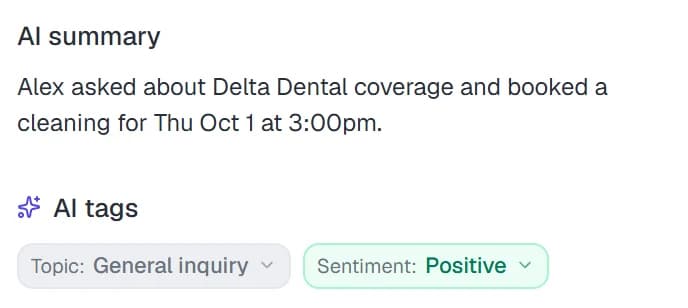
    Taking over, assigning or closing the chat triggers a one or two sentence summary under AI summary in the conversation info panel, like the closing summary shown here, so Dana can see what Megan wants without scrolling back. On the Routing card, View signals at the time shows the topics, sentiment and intent the chat had when the rule fired.

  4. One click to fix a wrong tag

    If a tag is off, Dana clicks the chip and picks the right value, or chooses Dismiss this tag. Corrected tags show a check mark and later passes leave them alone, so the inbox topic filter, segments and lead interests all work from her version.

AI summary and AI tags in the conversation info panel
Tags on every conversation
Topic: General inquiryIntent: InquirySentiment: PositiveDisposition: Resolved
Topics come from your own list. Anything new lands in a suggestions queue for you to approve.

Labels, limits and where to find them

Names exactly as they appear in the conversation info panel, Settings > Topics, the handoff rule editor and the segment builder.

Sentiment, summaries and tagsIn the Risolva app
Sentiment labels
Neutral, Positive, Confused, Frustrated, Angry. Neutral is the default when a message carries no clear signal.
Intent labels
Support, Sales, Complaint, Inquiry, Informational
Disposition labels
Resolved, Unresolved, Escalated, Awaiting customer, Abandoned
Topics
Ten starting topics, from Billing & payments to Other, plus your own with an optional description of up to 500 characters. A full pass sets one to five per chat. Starting topics can be switched off but not deleted.
Suggestions tab
Filter by Pending, Promoted, Dismissed or All over the last 7, 30 or 90 days, with a conversation count for each. Promoting asks for a key like gluten_free and a display name. Admins only.
When tags update
Tone and topic on each incoming message while the AI handles the chat. A full pass over up to the last 40 messages once the chat passes 8 messages, then after every 5 new ones.
AI summary
One or two sentences, aimed at under 200 characters, written when a teammate takes over, assigns or closes the chat. Each one replaces the last.
Where tags are used
Inbox topic filter, handoff rule conditions (Sentiment and Intent take Equals, Not equals, Any of or None of), the Discussed in chat segment filter, and lead interests
The full guide · 4 min readHow to spot frustrated customers in chat and route them fastHow AI reads the tone of every message, tags confused, frustrated or angry customers, and routes them to the right person before a bot makes things worse.Read the guide

What teams ask about live chat sentiment analysis

Live chat sentiment analysis classifies how a person feels in each message, separately from what they're asking. In Risolva it runs on WhatsApp, Instagram, Messenger and web chat: every incoming message gets one of five labels (neutral, positive, confused, frustrated or angry), and the conversation keeps the latest non-neutral one. Handoff rules can read that label the moment the message lands.

See how your own messages get tagged

Book a demo and bring a few real messages, including one that made your team wince. We'll show the tone and topic each one gets, the rule that would route it, and the summary your team would read on takeover.